Learn
Import FIT Files into Pelaris (Garmin, COROS, Suunto, Wahoo, Polar)
Bring your watch history into Pelaris
Your watch has been quietly keeping score for years. Every long run, every early swim, every ride you nearly skipped. That history belongs with your coach, and now it can come with you.
The short version:
- Export your workouts as FIT files from your watch’s app or website. The steps for each brand are below.
- Open Pelaris in a browser at coach.pelaris.io and sign in. A free account is all you need.
- Go to Profile, then Data, then Bring your history across. Drop your files in, check what Pelaris found, and choose Bring them across.
Pelaris reads every file, puts each session on its real date, matches recent ones to your plan, and skips anything already in your account.
Why your history matters
Your coach plans from what you have actually done. A coach that knows you ran three marathon blocks in the last four years plans a very different week from one that thinks you started running on Tuesday.
Progress needs a starting line. Your pace on your favourite loop, your longest ride, the month you swam more than ever. Those reference points only exist if the history comes across.
Nothing you did is lost. Moving to a new app should never mean starting from zero. Your sessions arrive as real training on their real dates, next to everything you log from here.
Export from Garmin
Your whole history, in one request:
- Sign in to your Garmin Account on the web.
- Open Data Management, then Export Your Data.
- Choose Request Data Export. Garmin emails you a download link when it is ready, which can take a few days.
- Download the export, open it, and find the DI-Connect-Uploaded-Files folder inside DI_CONNECT. It holds your original activity files.
- Select the
.fitfiles and drop them into Pelaris.
One activity:
- Open the activity in Garmin Connect on the web.
- Choose the gear icon, then Export File. Garmin downloads a small zip with the
.fitfile inside. - Open the zip and drop the
.fitfile into Pelaris.
Garmin’s own help pages are the source of truth if their menus move.
Export from COROS
One activity, in the COROS app:
- Open the activity.
- Tap the three dots at the top right, then Export Data, then .FIT.
- Save the file, or send it to yourself, and drop it into Pelaris.
Everything, from COROS Training Hub on the web:
- Open the Activity List.
- Choose Export Data, then .FIT.
- COROS sends the files to your email. Download them and drop them into Pelaris.
Export from Suunto
In the Suunto app on iPhone or Android:
- Open the workout.
- Tap the three dots at the top right and choose FIT.
- Save the file and drop it into Pelaris.
Suunto exports one workout at a time, so start with the sessions that matter most to you: your races, your long days, your last block.
Export from Wahoo
In the Wahoo app:
- Open the History tab and choose the ride.
- Tap the three dots on the summary, then Share activity, then Download .fit activity.
- Save the file and drop it into Pelaris.
The ride needs to have finished syncing to Wahoo before the download appears.
Export from Polar
On Polar Flow on the web:
- Open your Diary and choose the session.
- Open the Export menu at the top right and choose FIT.
- Drop the file into Pelaris.
If you train with Polar, you can also connect Polar to Pelaris so every new session arrives on its own.
Bring the files into Pelaris, step by step
- Sign in at coach.pelaris.io. A free account is enough, and importing does not use up anything in your plan.
- Open the Profile tab and find the Data section.
- Choose Bring your history across.
- Drop your files onto the page, or choose Choose files and select them. You can bring in one file or hundreds at once.
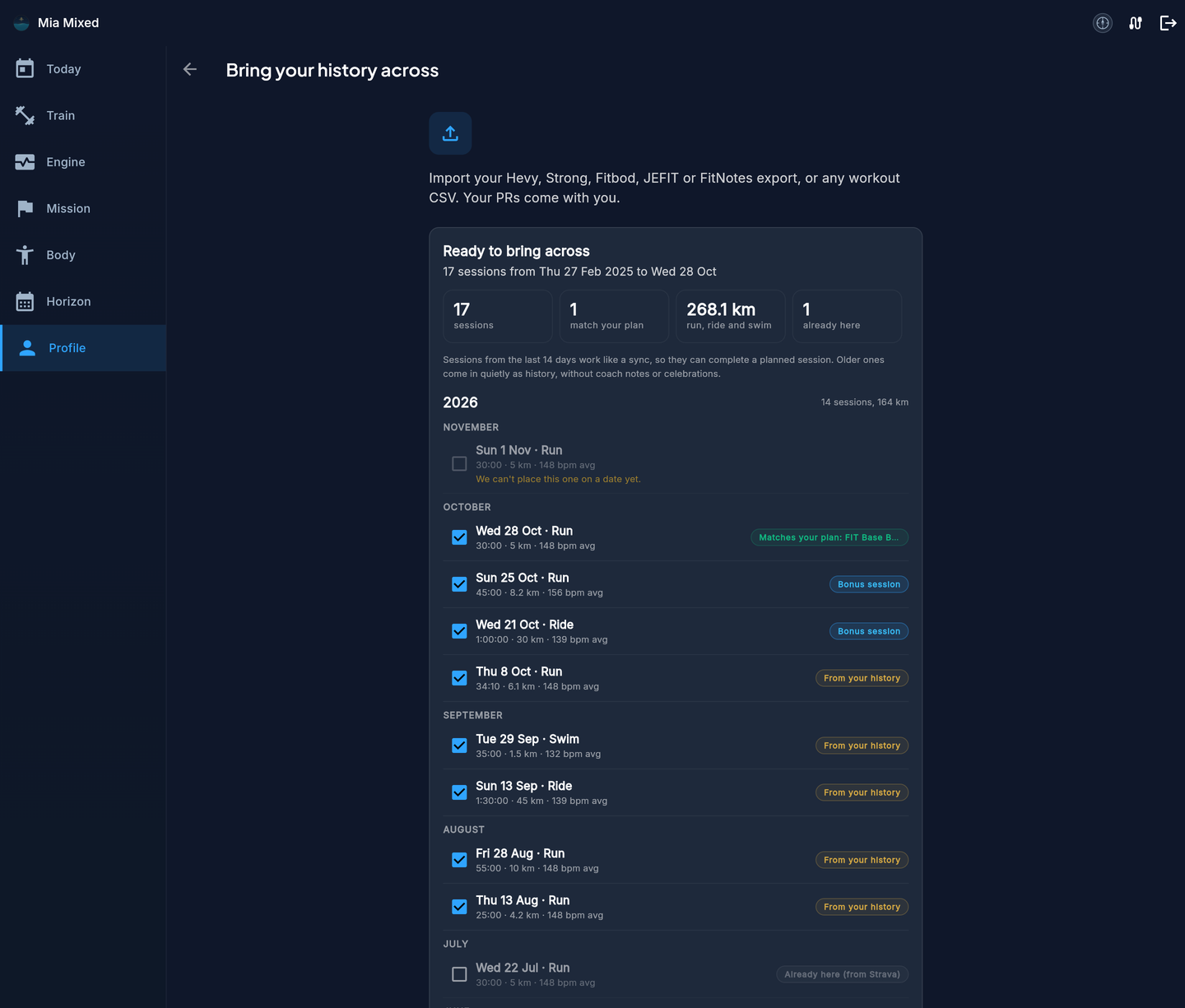
- Pelaris reads each file and shows you what it found. Your sessions are grouped by year and month, newest first, and each one says where it fits:
- Matches your plan: a recent session that completes one in your Pelaris plan.
- Bonus session: a recent session beyond the plan.
- From your history: anything older than two weeks.
- Already here: a session a connected app already brought in. It stays unticked, so nothing is counted twice.
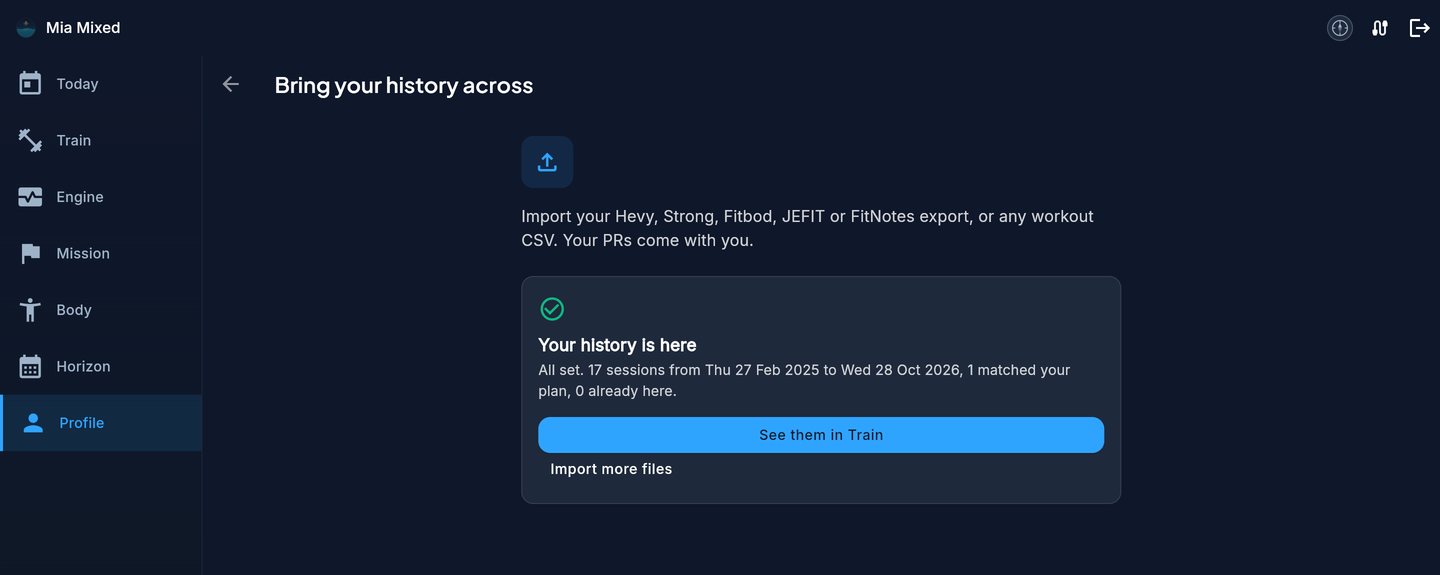
- Untick anything you would rather leave out, then choose Bring them across. A summary shows how many sessions came across and how many matched your plan.
Nothing is added to your training until you choose Bring them across.
What comes across
- Every workout on its real date and start time, in the time zone your watch recorded it
- Sport, duration, distance, calories, average and maximum heart rate, cadence, power and ascent
- Laps and intervals, exactly as your device recorded them
- Pool swims, length by length, with strokes and stroke type
- Multisport sessions, such as a triathlon, with each leg as its own session
- The make and model of the device that recorded it
What does not come across
- Your GPS route and map. Pelaris never keeps them.
- Sets and reps from a strength session on your watch. The session comes across with its time and heart rate. If you log strength in Hevy, Strong or another app, bring that history across too.
- Course, settings and workout-plan files. They are not workouts, so Pelaris leaves them out and tells you.
- GPX and TCX files. Pelaris reads FIT files today.
How recent and older sessions are treated
Sessions from the last two weeks count as current training, the same as a synced watch: they complete matching planned sessions and your coach factors them into this week’s load.
Older sessions arrive as your history. They sit on their real dates in Train, count toward your training totals, and give your coach years of context to draw on. They arrive quietly, without a burst of notifications.
Your files and your privacy
- Your files are read in memory on our servers and then discarded. Pelaris never keeps the file or your route.
- Pelaris keeps the workout summary (date, sport, time, distance, heart rate, power, laps) and the make and model of your device.
- Nothing is added to your training until you choose Bring them across.
- Your training data is never used to train AI models.
More detail is on the privacy page and in how Pelaris handles your data.
If something looks off
- Pelaris says a file is not a workout. Course, settings and workout-plan files are left out. Check you exported an activity.
- A file looks damaged. Export that activity again and drop the new copy in.
- A session shows a date in 1990. Your watch’s clock may have been off when it recorded. You can keep it or untick it.
- You imported the same files twice. Nothing doubles.
- Something else. Get in touch and we will sort it out with you.
Keep your watch, add a coach
Your watch is brilliant at recording. Pelaris turns that record into a plan that adapts to the week you actually had. Keep training on the device you love, bring your history with you, and let your coach build from where you really are.
Leaving an app that tracked your lifting? Read switching from Hevy or Strong, which covers Fitbod, JEFIT and FitNotes too. And because your data is yours, exporting it back out of Pelaris is free, any time.