Apps and devices
Import FIT files from your watch
Last updated
Your sessions from Garmin, COROS, Suunto, Wahoo and Polar can come into Pelaris as FIT files, each on its real date.
Import your files
- Export your sessions as FIT files from your watch’s app or website. The steps for each brand are in the guide: Import FIT files into Pelaris.
- Open Pelaris in a browser at coach.pelaris.io and sign in.
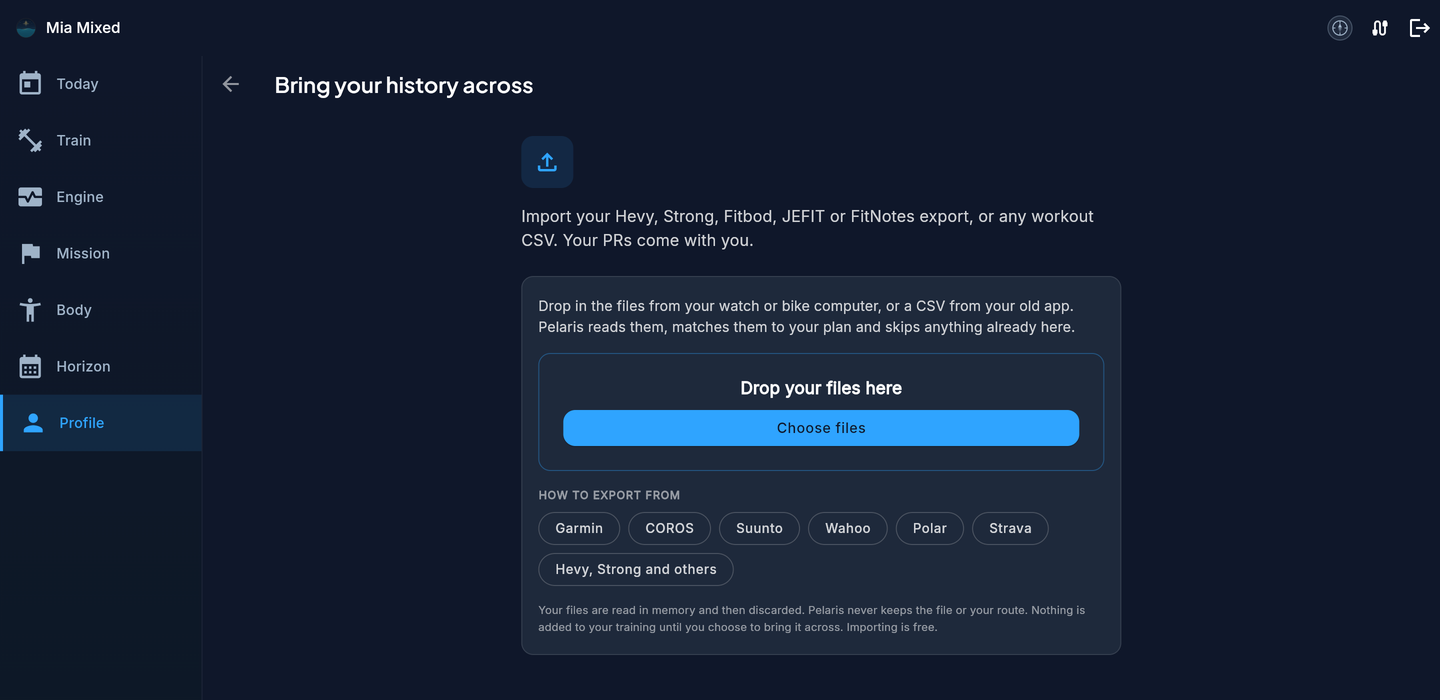
- Go to the Profile tab, find Data, and choose Bring your history across.
- Drop your files onto the page, or choose Choose files. One file or hundreds at once.
- Check the preview. Each session shows its date, sport, time and distance, and one of Matches your plan, Bonus session, From your history or Already here. Untick anything you want to leave out.
- Choose Bring them across. A summary shows how many sessions came across.
Choosing files in the iPhone and Android apps arrives with the next app update. Anything you import on the web shows in the apps straight away.
Where your sessions show
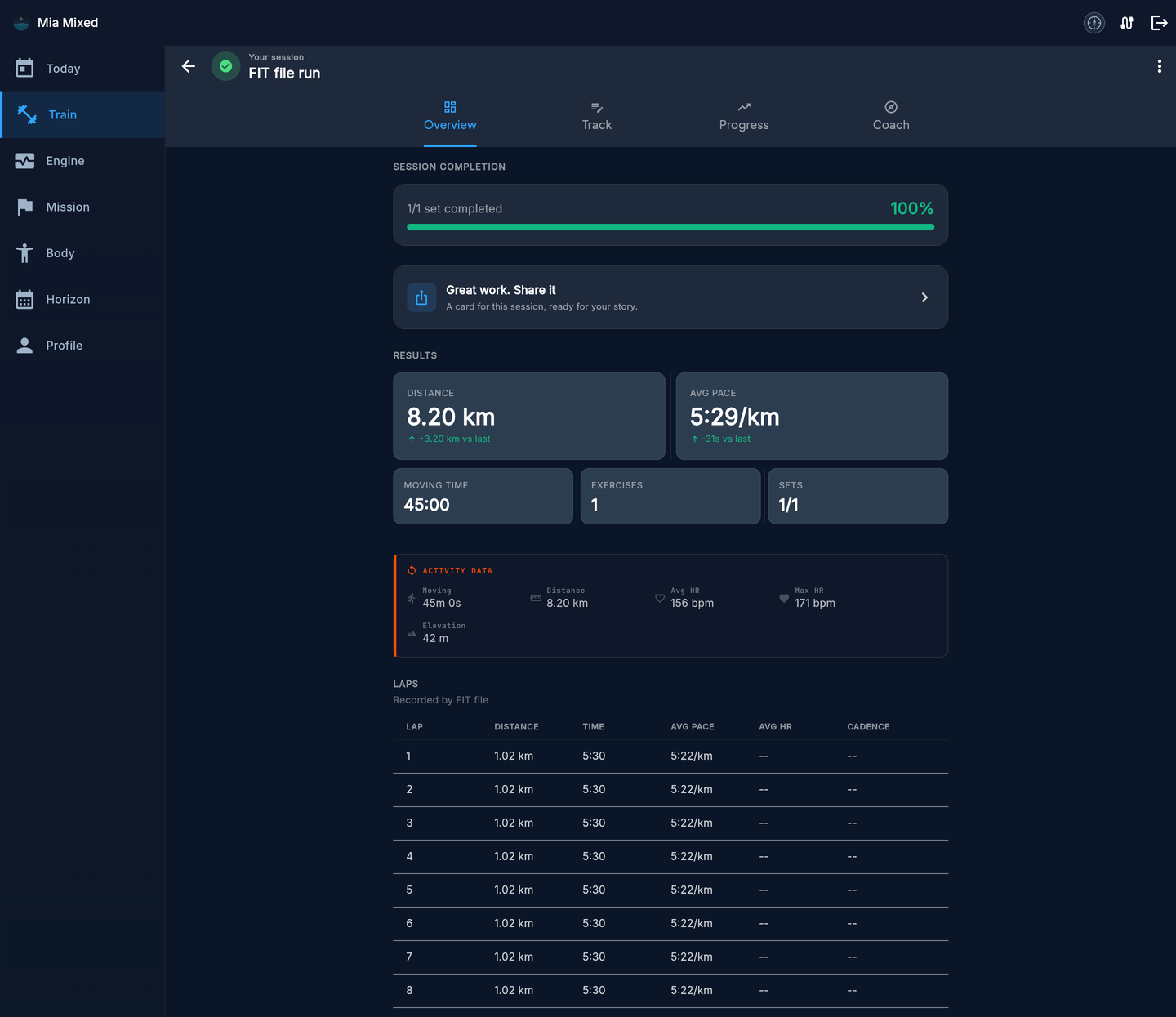
- Train: every session on its real date. A recent session that completes a planned one marks it done.
- Session card: the source reads FIT file, and the laps your device recorded are on the session.
- Your coach: sessions from the last two weeks count toward your current load. Older ones are your history, there for context.
What comes across
Sport, start time, duration, distance, calories, heart rate, cadence, power, ascent, laps, pool lengths, and the make and model of your device. Multisport sessions come across one leg at a time.
Not imported: your GPS route, sets and reps from strength sessions on a watch, course and settings files, and GPX or TCX files.
Messages you might see
- “This one is a course or settings file, not a workout, so we left it out.” Export an activity instead.
- “This file looks damaged.” Export the session again and drop in the new copy.
- “This one says Mon 1 Jan 1990.” Your watch clock may have been off. Keep it or untick it.
- “We lost the connection.” Everything already brought across is saved. Choose Carry on to finish.
Still stuck? Contact us and we will look at it with you.
Frequently asked questions
Which files can I import?
FIT activity files from any watch or bike computer that writes them, including Garmin, COROS, Suunto, Wahoo and Polar. Files ending in .fit or .fit.gz both work.
Will anything be counted twice?
No. A session a connected app already brought in shows as Already here and stays unticked. If you bring it across anyway, it joins the existing session as a second source.
Is my file or route stored?
No. The file is read in memory and immediately discarded. Pelaris keeps the workout summary and laps, never the file or your GPS route.
Does it cost anything?
No. Importing is free, and tracking in Pelaris is free forever.