Apps and devices
Connect Pelaris to Le Chat
Last updated
Mistral’s Le Chat, now part of Mistral Vibe at chat.mistral.ai, lets you add your own connectors, and Pelaris is one of them. Connect it once and Le Chat can read your program, log your sessions and adjust your week with you.
Connect
- In Le Chat (Mistral Vibe), open Context in the sidebar, then Connectors.

- Select + New connector, then New custom connector (older versions: + Add Connector, then the Custom MCP Connector tab).
- Name it Pelaris and paste this server address. Le Chat detects the sign-in method for you:
https://api.pelaris.io/mcp- Select Connect, then sign in to Pelaris (or create your free account) and approve the access you want to give.
- Start a chat and say: “Get me started with Pelaris”.
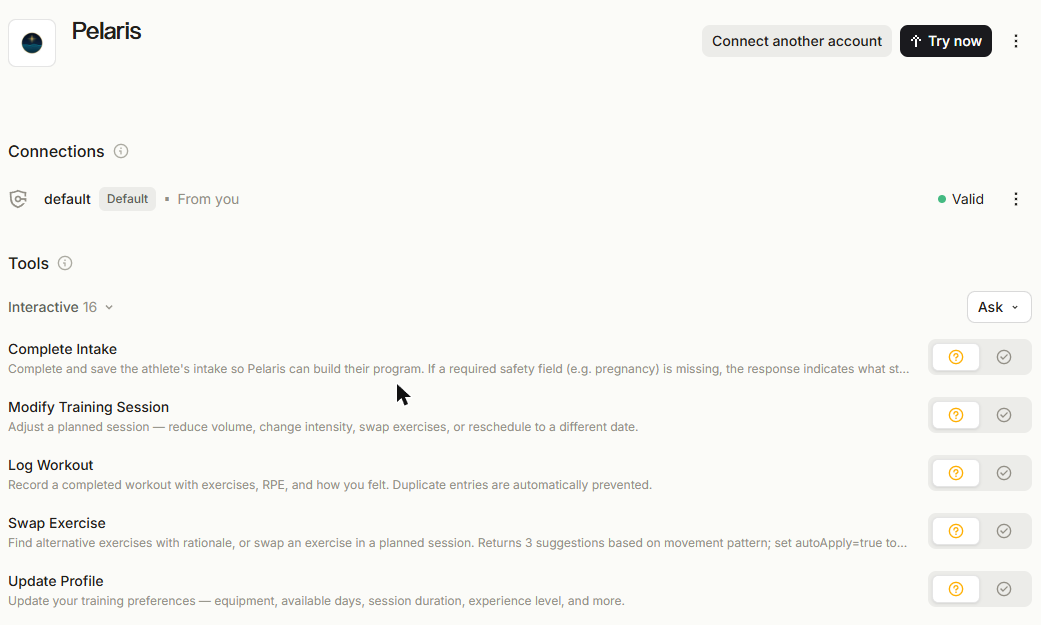
On team plans, an admin needs to add the connector first.
What to ask next
- “What’s my session today?”
- “Log my ride: 40 km, 1 hour 20, felt heavy-legged.”
- “How did my training go this week?”
Disconnect
- In Pelaris: open Connected Apps and find Mistral under AI Assistants.
- In Le Chat (Mistral Vibe): open Context, then Connectors, and remove Pelaris.
Your training history stays in Pelaris.
If something goes wrong
If sign-in loops or Le Chat can’t reach Pelaris, remove the connector and add it again. Still stuck? Contact us.
Using another assistant too? See use Pelaris in your AI assistant.
Why train with Pelaris in Le Chat? See Pelaris in Le Chat.
Frequently asked questions
Can I add Pelaris on Le Chat's free plan?
Yes. On Free, Pro and Student plans you are the admin of your own account, so you can add custom connectors. On team plans, an admin adds them.
What address do I use?
https://api.pelaris.io/mcp