Training
Import Workouts from Screenshots and PDFs
Last updated
If you have a training session trapped in a coach’s PDF, a screenshot from another workout app, an old spreadsheet, or a photo of your gym’s whiteboard, you do not need to re-type every set and rep by hand. Pelaris extracts the exercises, sets, reps, loads, and conditioning intervals directly from an image or PDF and maps them into your structured training log.
Step-by-step: Import a workout from a screenshot or PDF
- Open the Import menu: In the Pelaris app, go to the Training tab (or open the AI Coach chat), tap the + button, and select Import from Screenshot or PDF.
- Select your image or document: Choose a screenshot from your camera roll, snap a clear photo of a printed sheet or gym whiteboard, or select a .pdf file from your device’s files.
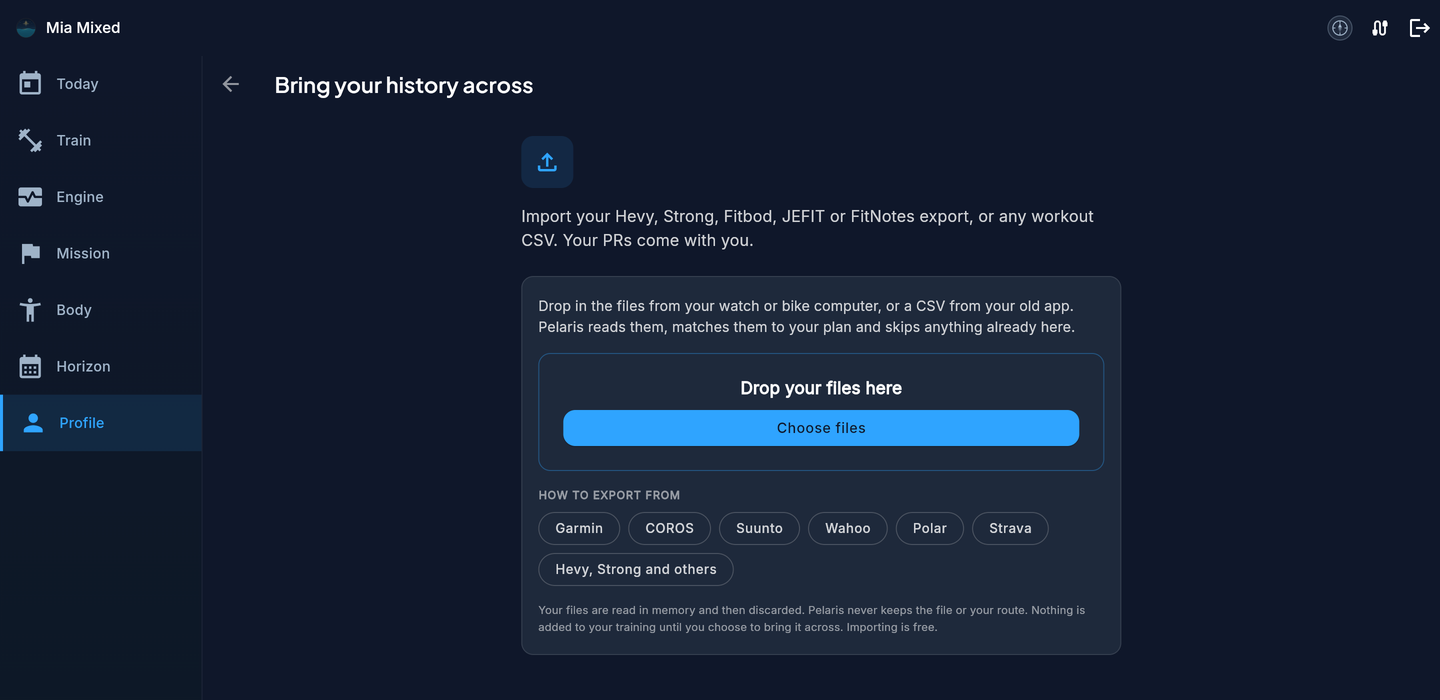
- Choose Completed vs Planned:
- Log Completed Workout: Select this if you have already finished the session and want the sets, reps, and volume added to your training history (pick the date and time the session took place).
- Save as Planned Workout: Select this if the screenshot or PDF is an upcoming session you want added to your calendar so you can track it live with rest timers and target weights.
- Review the extracted workout: Pelaris parses the document and displays every movement, set, rep count, weight, and conditioning interval on a clean confirmation screen:
- Exercise matching: Each extracted movement is matched to Pelaris’s canonical exercise library (for example, mapping “BB Back Squat” to Barbell Back Squat) so your estimated 1RM and volume history link up automatically. Tap any exercise name if you want to remap it.
- Unit verification: Check that loads (kg or lb) and distances (m, km, mi, or yd) match what was written on the sheet.
- RPE / RIR and notes: Any tempo instructions (3-1-1-0), rest intervals (90s rest), or RPE/RIR targets on the sheet are attached directly to the sets.
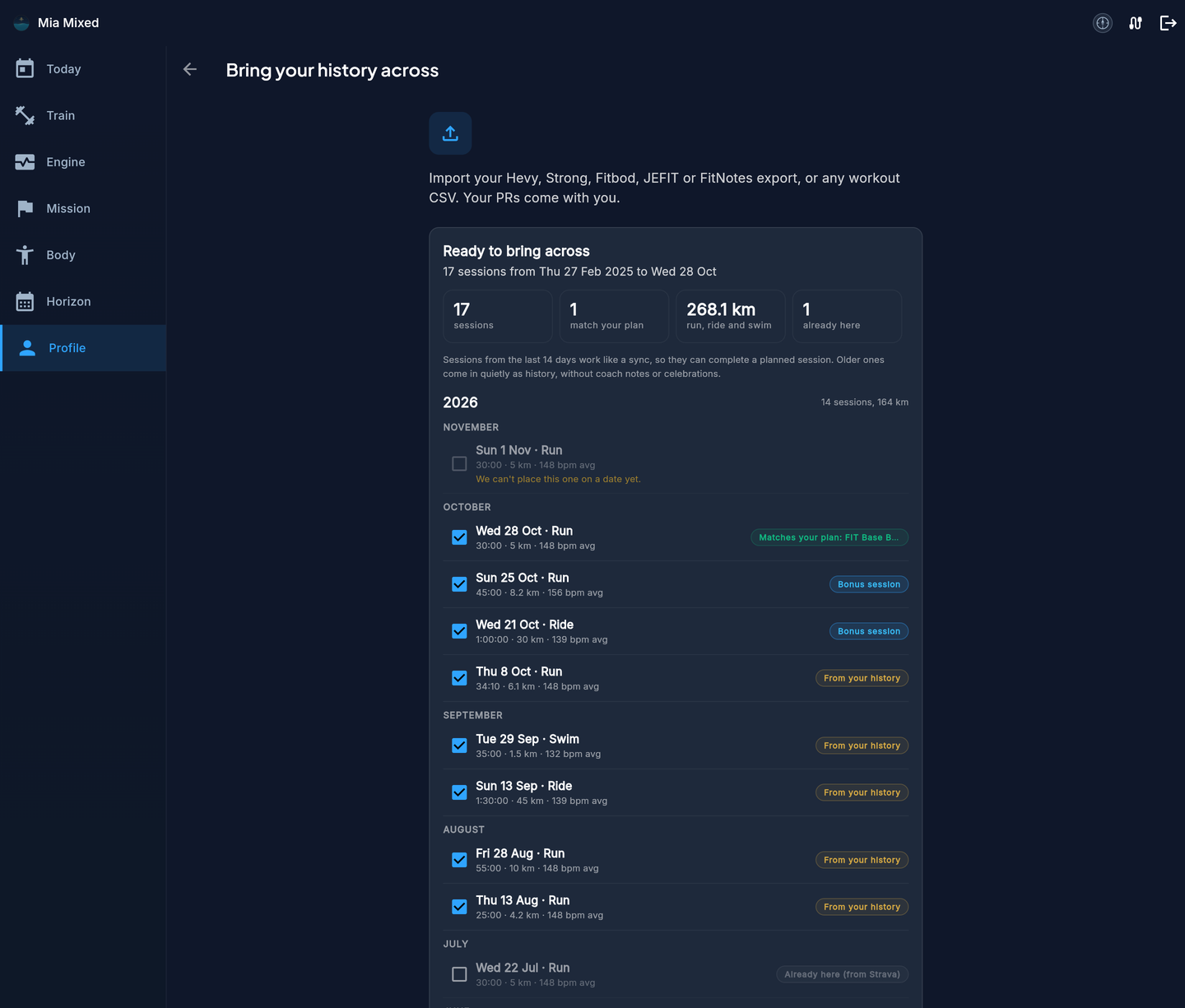
- Tap Confirm & Save: Once you verify the numbers, tap Confirm. Nothing is written to your training log until you approve the review screen.
What Pelaris extracts from your files
| Workout Type | Extracted Fields | How Pelaris Uses the Data |
|---|---|---|
| Strength & Gym Sessions | Exercise name, set count, reps, weight (kg/lb), RPE or RIR, rest timers, superset groupings | Updates your exercise-specific benchmark history, estimated 1RM trends, and weekly muscle-group set volume |
| Running, Cycling & Rowing | Warm-up, main interval structure (e.g., 6 x 800m @ 3:45/km, 90s jog), cooldown, total distance and duration | Populates structured workout steps for live guided execution or calculates session training load (TRIMP / sRPE) |
| Swimming Sets | Pool length (25m, 50m, 25yd), stroke type, repeat distances (e.g., 10 x 100m Free on 1:35), drill/gear notes (pull buoy, paddles) | Calculates total swim volume, pace per 100m targets, and integrates session load into your weekly multi-sport balance |
| Multi-Week PDF Programmes | Day-by-day session breakdowns across a 1-to-4-week sheet | Lets you import a single day’s session immediately or stage the week’s sessions onto your upcoming schedule |
How imported workouts affect your AI Coach and training load
Pelaris separates recent acute load from historical benchmark context so importing old workouts never breaks your current week’s recovery recommendations:
- Workouts dated within the last 14 days: Feed directly into your acute training load, muscle-group recovery map, and weekly volume targets. If you import a heavy leg session you completed yesterday on a whiteboard, Pelaris automatically adjusts tomorrow’s scheduled lower-body volume.
- Historical workouts (older than 14 days): Update your all-time exercise benchmarks, personal bests, and chronic training context without artificially inflating this week’s acute fatigue score.
Tips for clean screenshot and whiteboard scans
- Crop out clutter when possible: If you are photographing a busy gym whiteboard with three different classes written on it, frame the photo around the specific track or tier you completed.
- Include column headers: When taking a screenshot of a Google Sheet or Excel programme, keep the top header row (Exercise | Sets | Reps | Weight | RIR) visible in the frame so Pelaris locks onto the right columns immediately.
- Multi-page PDFs: If your coach sent a 12-page PDF with ten pages of general nutrition notes and two pages of workout tables, you can select the specific page range containing the workout tables during upload for faster processing.
Other ways to bring your data into Pelaris
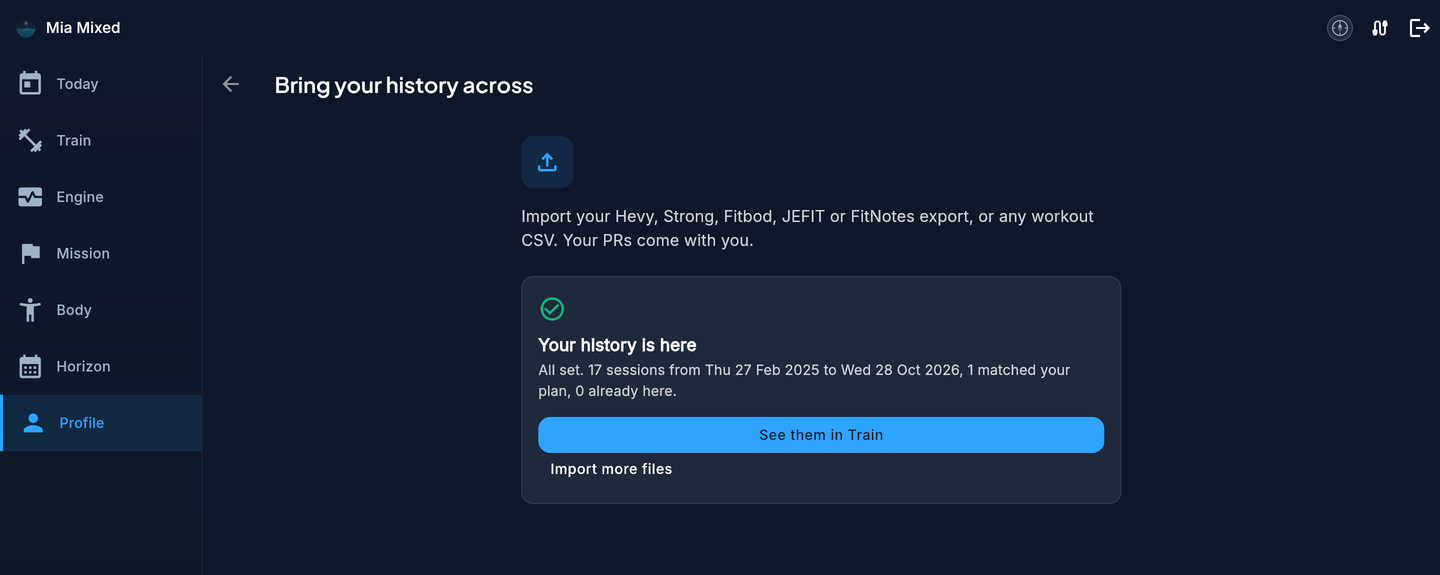
If you are migrating a full training archive from another platform or wearable ecosystem, use our direct integrations and bulk importers alongside screenshot imports:
- Switching from Hevy or Strong: Import years of lifting logs in seconds using a single CSV file via our Hevy and Strong migration guide.
- Wearables and GPS platforms: Set up automatic background sync with Strava, Polar Flow, or Garmin Connect, or bulk-import historical archives using .FIT files.
- Body composition sheets: To upload a DEXA scan, InBody printout, or smart-scale screenshot, use the dedicated Body Composition Report Upload flow.
Frequently asked questions
What types of workout screenshots and files can I import into Pelaris?
You can upload standard image files (PNG, JPG, HEIC) and PDF documents. This includes screenshots from other workout apps, photos of a gym whiteboard, PDF programmes sent by a club or strength coach, and screenshots of spreadsheet training blocks.
Can I edit the exercises, sets, or weights before saving an imported workout?
Yes. Every screenshot or PDF import opens a structured review screen before anything is saved to your log. You can edit exercise names, swap movements to match Pelaris's benchmark library, adjust sets, reps, load, RPE/RIR, or change distance and pace units before tapping Confirm.
How does Pelaris handle pounds (lb) vs kilograms (kg) or miles vs metres?
Pelaris automatically detects unit labels on your screenshot or PDF (such as lb, kg, mi, km, yd, or m) and converts them cleanly into your preferred display units while storing standardised SI units underneath so your 1RM and volume trends stay accurate.
Can I import a planned workout to do later, or only completed workouts?
Both. During the import confirmation step, you can choose to save the extracted session as a Completed Workout on a specific date or save it as a Planned Session on your upcoming training calendar so you can log against it live in the gym or pool.